
Source-led article
GitHub Copilot CLI Enhances Developer Control with New Slash Commands
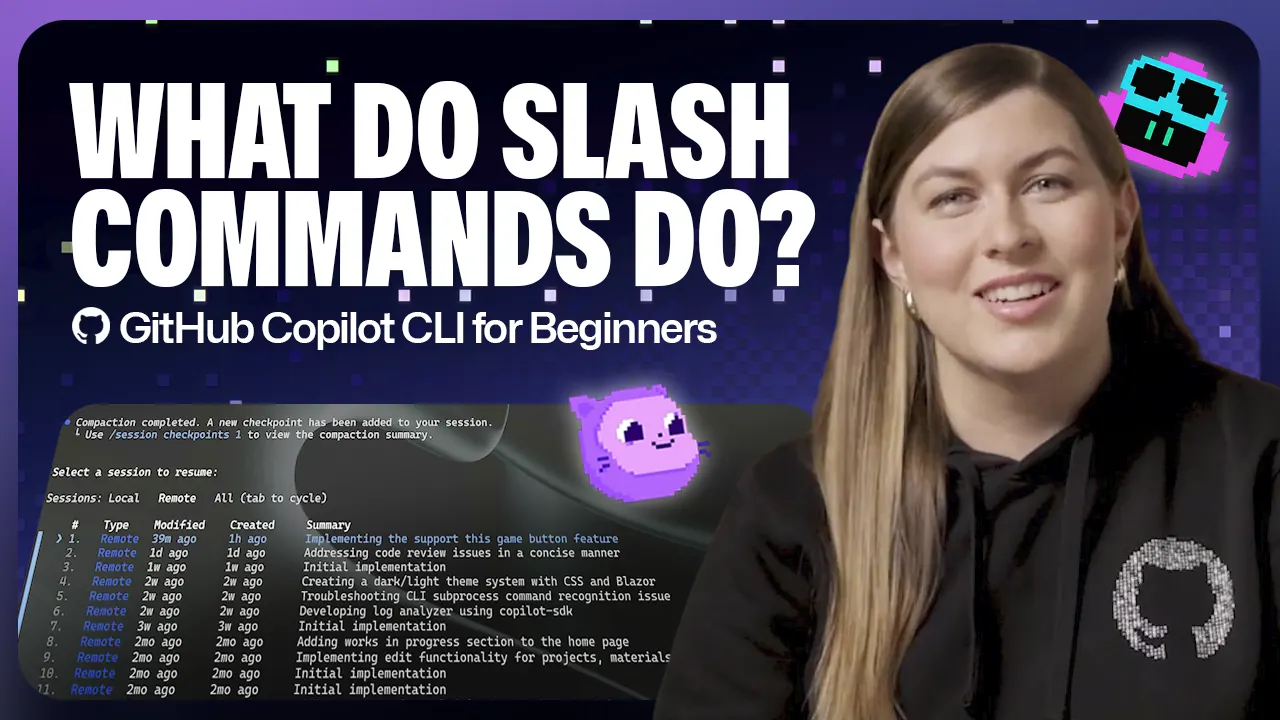
GitHub Copilot CLI is rolling out new slash commands designed to provide developers with more direct and granular control over their AI coding assistant within the terminal environment. These additions aim to streamline workflows by allowing users to manage AI models, monitor token usage, and resume past sessions without leaving the command line interface. This update is particularly relevant for developers in India who rely on efficient tools to manage complex coding projects and integrate AI capabilities seamlessly.
The new functionality builds on previous iterations of GitHub Copilot CLI, which focused on interactive and non-interactive modes. The introduction of slash commands acts as a central control surface, making the AI tool more adaptable to specific development needs and preferences.
Understanding Slash Commands
Slash commands are built-in controls accessible directly from the command line, serving as a command center for interacting with Copilot CLI. Developers can type `/` in the terminal to view a scrollable list of all supported commands. This direct access simplifies complex operations, moving beyond basic AI code suggestions to deeper configuration and management.
Key functionalities now accessible via these commands include switching between different AI models, checking the current context window usage, and efficiently managing session history. This level of control allows developers to tailor the AI’s behavior to the specific demands of a task, potentially improving both speed and output quality.
Managing Models and Context
One significant enhancement is the `/model` command, which allows developers to switch between various AI models optimized for different types of work. This command displays available models along with key details, helping users select the most appropriate AI for their current task, thereby impacting performance and results.
Another crucial command is `/context`, which provides insights into the current usage of the context window – the amount of information Copilot CLI can “remember” during a session. This helps developers monitor token usage and available buffer. If space runs low, the `/compact` command can summarize the current conversation, freeing up context without needing to start a new session. For a complete reset, `/clear` is available to clear the session entirely, while `/resume` allows users to pick up from previous local or remote sessions.
Navigating Projects and Permissions
The new slash commands also improve project navigation and permission management. Developers can use `/cwd` to change their working directory, enabling them to work across different repositories or directories without exiting Copilot CLI. This feature is particularly useful for multitasking across multiple codebases and scoping Copilot’s work to specific project parts.
Furthermore, `/reset-allowed-tools` provides a way to reset permissions previously granted to Copilot CLI, such as file editing. This allows developers to re-establish control over Copilot’s actions when working in sensitive parts of a project or moving to new environments where different levels of AI interaction are desired. These controls ensure that developers maintain oversight and can adapt the AI’s access as needed.
Key facts
| Feature | Description |
|---|---|
| Model Switching | Use `/model` to select different AI models for specific tasks. |
| Context Control | `/context` checks token usage; `/compact` summarizes conversations; `/clear` resets session. |
| Session Management | `/resume` allows returning to previous coding sessions. |
| Directory Navigation | `/cwd` changes working directory for multi-project work. |
These enhancements are designed to make GitHub Copilot CLI a more powerful and flexible tool for developers, giving them greater control and efficiency in their daily coding tasks. The ability to manage AI interactions directly from the terminal reduces friction and allows for a more deliberate workflow.
Source: GitHub Blog AI (https://github.blog/ai-and-ml/github-copilot/github-copilot-cli-for-beginners-overview-of-common-slash-commands/)